
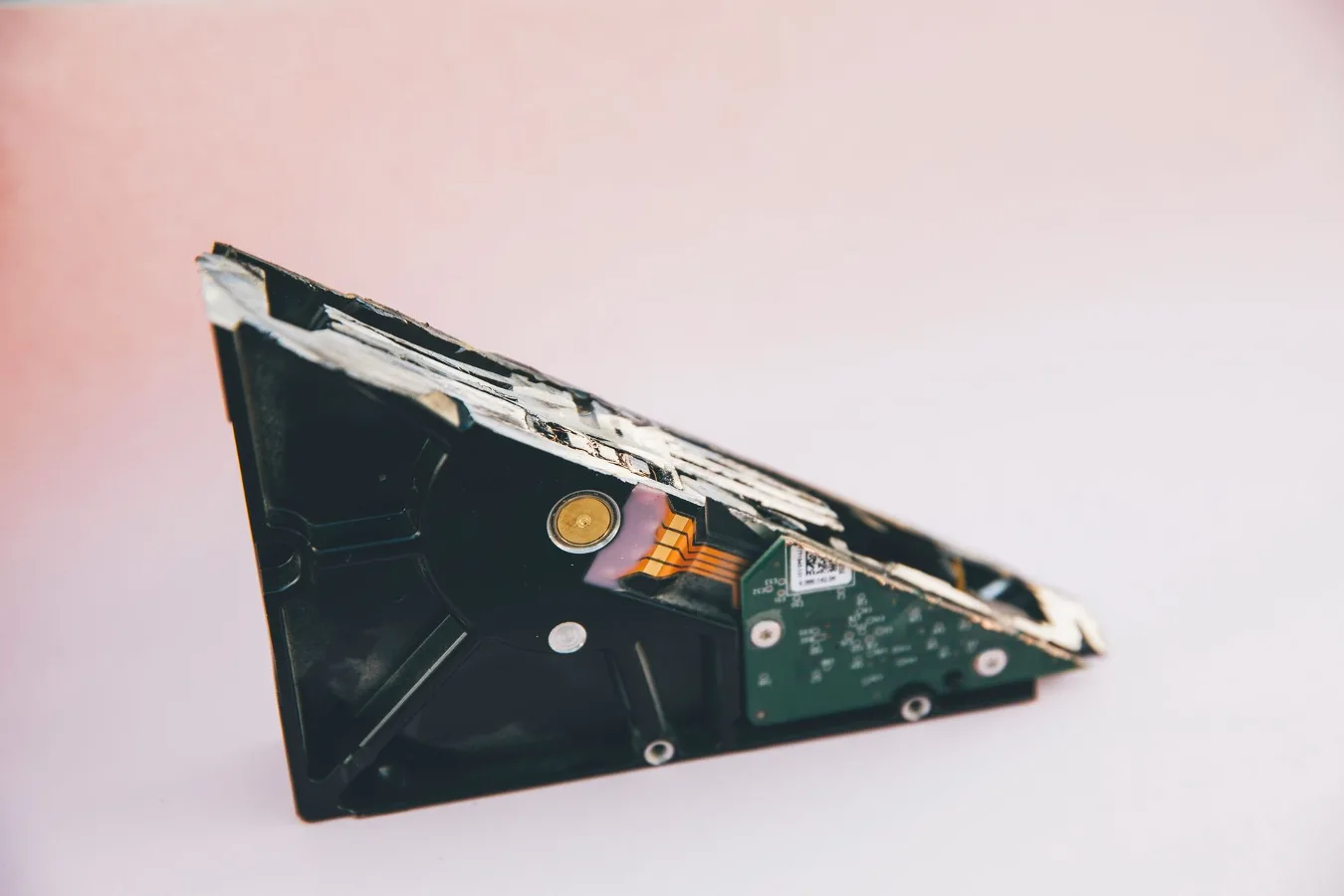
If you are deciding between an external SSD and an internal SSD, the short answer is this: choose an internal SSD when you want the best performance and a more permanent upgrade, and choose an external SSD when portability, convenience, and cross-device use matter more. ssd internal vs external offers more detail on this point. Internal SSD vs External SSD: Which to Choose offers more detail on this point.
That simple rule covers most cases, but the better choice depends on how you use your computer. A desktop gamer, a laptop owner with limited storage, a creator moving large video files, and someone who mainly wants a backup drive may all land on different answers.
When each type makes the most sense
Internal SSDs are best for upgrading the storage inside a laptop or desktop. They are usually the right choice if you want your operating system, apps, and frequently used files to feel fast all the time. Because the drive connects directly to the system, internal SSDs are typically the stronger option for boot drives, app loading, and demanding workloads.
External SSDs make more sense when you need storage you can carry between devices. They are useful for file transfers, backups, project libraries, and expanding storage without opening the computer. They are also appealing if your device is hard to upgrade or if you switch between a laptop, desktop, and tablet-like workstation setup.
A common misconception is that an external SSD is always slower in a way that makes it unsuitable for real work. In practice, many external SSDs are fast enough for everyday tasks, photo libraries, and even some creative workflows. The real question is not whether external SSDs are usable. It is whether they fit your workflow better than an internal upgrade.
Core differences that actually matter
Both types use flash storage and have no moving parts, which is why both feel much faster than traditional hard drives. The important differences are in connection type, installation, flexibility, and the way each drive fits into daily use.
| Factor | Internal SSD | External SSD |
|---|---|---|
| Installation | Requires opening the device and installing inside | Plug and play through USB or another external connection |
| Portability | Stays inside one computer | Easy to move between devices |
| Best use | Boot drive, apps, active work | Portable storage, backups, shared files |
| Performance potential | Usually higher, especially with NVMe | Depends on USB standard and enclosure |
| Upgrade simplicity | More involved | Very simple |
| Cross-device compatibility | Limited to the installed system | Works across compatible devices |
Step-by-step criteria for choosing
1. Start with your main job
If the drive will hold your operating system, creative apps, games you play often, or work files you use all day, an internal SSD usually offers the cleanest solution. If the drive is for moving files between machines or keeping a backup copy off your main computer, an external SSD is often the better fit.
2. Check your device limitations
Some laptops have only one storage slot, and replacing that drive may be the only meaningful upgrade. Other devices may be difficult to open, void a warranty if serviced incorrectly, or simply not support the kind of drive you want. On desktops, there is often more room to add or replace drives, which makes internal upgrades easier.
An overlooked consideration is that the best storage choice is not always the fastest one. It is the one that works with your hardware, your comfort level, and your willingness to install or manage it.
3. Compare connection limits
External SSDs depend on the connection between the drive and the computer. If that connection is slower than the SSD itself, the drive will not deliver its full potential. Internal SSDs also have interface limits, but those are usually easier to match to the motherboard or laptop slot because the drive is built into the system.
For external use, the enclosure and cable matter as much as the drive. For internal use, the slot type and system support matter just as much as the SSD model itself.
4. Think about portability and risk
An external SSD is easier to forget, misplace, or disconnect accidentally. That is not a reason to avoid one, but it is a practical trade-off. If the drive will travel in a bag or be plugged into different machines, you will want to think about physical protection and file organization. Internal SSDs are less convenient to move, but they are also harder to lose and less exposed to cable wear.
5. Decide how much convenience matters
External SSDs win on convenience for fast setup. You can usually plug one in and start using it right away. Internal SSDs require more effort up front, but they tend to feel more seamless once installed. If you want a clean, always-there storage upgrade, internal makes sense. If you want flexibility and simplicity, external is attractive.
Performance: what users usually notice
For everyday computing, both SSD types can feel quick. The most noticeable difference often appears in large file transfers, sustained workloads, and tasks that rely on the drive as active working space.
An internal SSD is often the better choice for:
- booting the operating system
- launching applications
- running games from local storage
- working with large project files regularly
- using the drive as a scratch disk or primary workspace
An external SSD is often the better choice for:
- moving files between a home and work computer
- keeping project archives separate from the main system
- making backups you can unplug when finished
- carrying photo, video, or document libraries
- expanding a device that cannot easily be upgraded internally
A practical nuance: if you are using an external SSD for demanding work, sustained speed matters more than headline speed. The drive may feel fast at first, then slow down depending on the enclosure, the cable, the port, and how the drive handles longer transfers. That does not make it a bad choice, but it does mean real-world use is more complex than the box description suggests.
Compatibility: the decision-maker many people overlook
Compatibility is one of the biggest reasons a drive choice works or fails. Internal SSDs must match the slot and interface supported by the device. Some systems accept SATA drives, others use M.2 drives, and some support NVMe while others do not. Even when the physical fit is right, the device may have firmware or lane limitations that affect performance.
External SSDs are more universal, but not fully universal. A drive can be used on multiple systems only if the ports and operating systems support it. A USB-C connector does not automatically guarantee the fastest possible speed. The computer, cable, and enclosure all need to support the same level of performance for the result to be worthwhile.
If your main goal is to avoid compatibility surprises, an external SSD is often simpler. If your goal is maximum integration with one machine, an internal SSD is usually the better technical fit.
Cost and long-term value
Without getting into specific pricing, the value question usually comes down to what you are replacing or improving. An internal SSD can transform an old hard-drive-based laptop or desktop into a much more responsive machine. In that case, the return on the upgrade can be significant because it improves every session you use the computer.
An external SSD may deliver better value if you already have a fast main drive and simply need more space or a portable backup option. It can also be a smarter first purchase if you are unsure about opening your device or want storage that can move with you if you change computers later.
One limitation of external storage is that it does not make the whole system faster in the same way an internal boot drive does. It improves access to the files stored on it, but it does not replace the performance boost of a better system drive.
Examples of common use cases
For a laptop with limited storage
If the laptop has an upgradeable slot and you want to improve the feel of the whole machine, an internal SSD is usually the right answer. If the laptop is already fast but simply short on space for media, documents, or downloads, an external SSD can handle overflow without forcing a teardown.
For a desktop used for gaming
An internal SSD is usually the first choice for the operating system and current games. An external SSD can still be useful for game libraries you do not play every day, but it is typically the second-line storage option rather than the main one.
For photo and video work
Creators often use both. An internal SSD can hold the operating system and active project files, while an external SSD can store source footage, delivery files, or archives. This split helps keep the main system responsive while preserving portable access to large projects.
For backup storage
External SSDs are often more convenient because they can stay disconnected when not in use. That separation adds a layer of safety against accidental deletions, ransomware, and everyday clutter. They are not a complete backup strategy by themselves, but they are a useful part of one.
Common mistakes to avoid
- Buying an internal SSD without checking interface compatibility first
- Assuming any USB cable will deliver the same external SSD speed
- Choosing an external drive for a workload that really needs an always-attached boot drive
- Expecting a portable SSD to improve the performance of apps installed on another drive
- Overlooking backup habits and relying on a single external drive for everything
- Ignoring the device’s physical upgrade difficulty before planning an internal replacement
A simple way to decide
If you want the shortest possible decision path, use this rule:
- Choose an internal SSD if the drive will stay in one computer and you want the strongest overall system upgrade.
- Choose an external SSD if you need portability, quick setup, or storage that works across multiple devices.
- Use both if you want an internal SSD for the operating system and an external SSD for backups, transfers, or project storage.
That last option is common for good reason. Many users do not have to choose one forever. A system can use an internal SSD as the primary drive and an external SSD as flexible secondary storage.
Checklist before you buy
- Confirm whether your device supports an internal upgrade
- Check the drive interface your system needs
- Decide whether portability is essential
- Think about whether the drive will be a boot drive, work drive, or backup drive
- Review the ports and cables required for external use
- Consider how often you will move the drive between devices
- Plan for backups if the new drive will hold important files
Frequently asked questions
Is an external SSD slower than an internal SSD?
Usually, yes, but the difference depends on the connection, enclosure, and device support. For many everyday tasks, an external SSD still feels very fast.
Can I use an external SSD as my main drive?
You can use one for active files and even for some workflows, but it is usually not the best substitute for an internal boot drive if you want the cleanest system integration.
Is an internal SSD better for gaming?
Often, yes, especially if the games are installed on the system drive or a primary internal game drive. An external SSD can still work for a game library, but it is usually less ideal as the main gaming storage. storage choices for gaming PCs offers more detail on this point.
Which is better for backups?
An external SSD is often the more practical backup option because it is easy to disconnect when not needed and can be stored separately from the computer.
Should I buy both?
Many people benefit from both: an internal SSD for the operating system and daily work, and an external SSD for portable storage, project handoff, or backups.
If you are comparing SSD external vs internal for a real purchase, the best choice is the one that matches your device, your workflow, and how often you need to move data. Internal storage is usually the better performance-first upgrade. External storage is usually the better flexibility-first choice.
