
Internal SSD vs External SSD: the short answer
If you want the fastest, most seamless storage upgrade inside a desktop or laptop, an internal SSD is usually the better choice. If you need storage that moves easily between devices, supports backups, or avoids opening your computer, an external SSD is often the more practical option. external ssd vs internal offers more detail on this point. how to choose an SSD for your laptop offers more detail on this point.
The better pick depends less on “which is faster” in the abstract and more on how you use the drive. Internal SSDs are typically chosen as boot drives, app drives, or primary storage. External SSDs are better suited to portable projects, file transfers, backup workflows, and temporary expansion.
That simple split covers most buying decisions, but the details matter. Interface type, device compatibility, upgrade difficulty, and long-term use all affect whether internal or external storage makes more sense.
What makes these two SSD types different
An internal SSD sits inside the computer and connects directly to the motherboard or storage interface. In modern systems, that usually means either an NVMe SSD in an M.2 slot or a SATA SSD connected by cable.
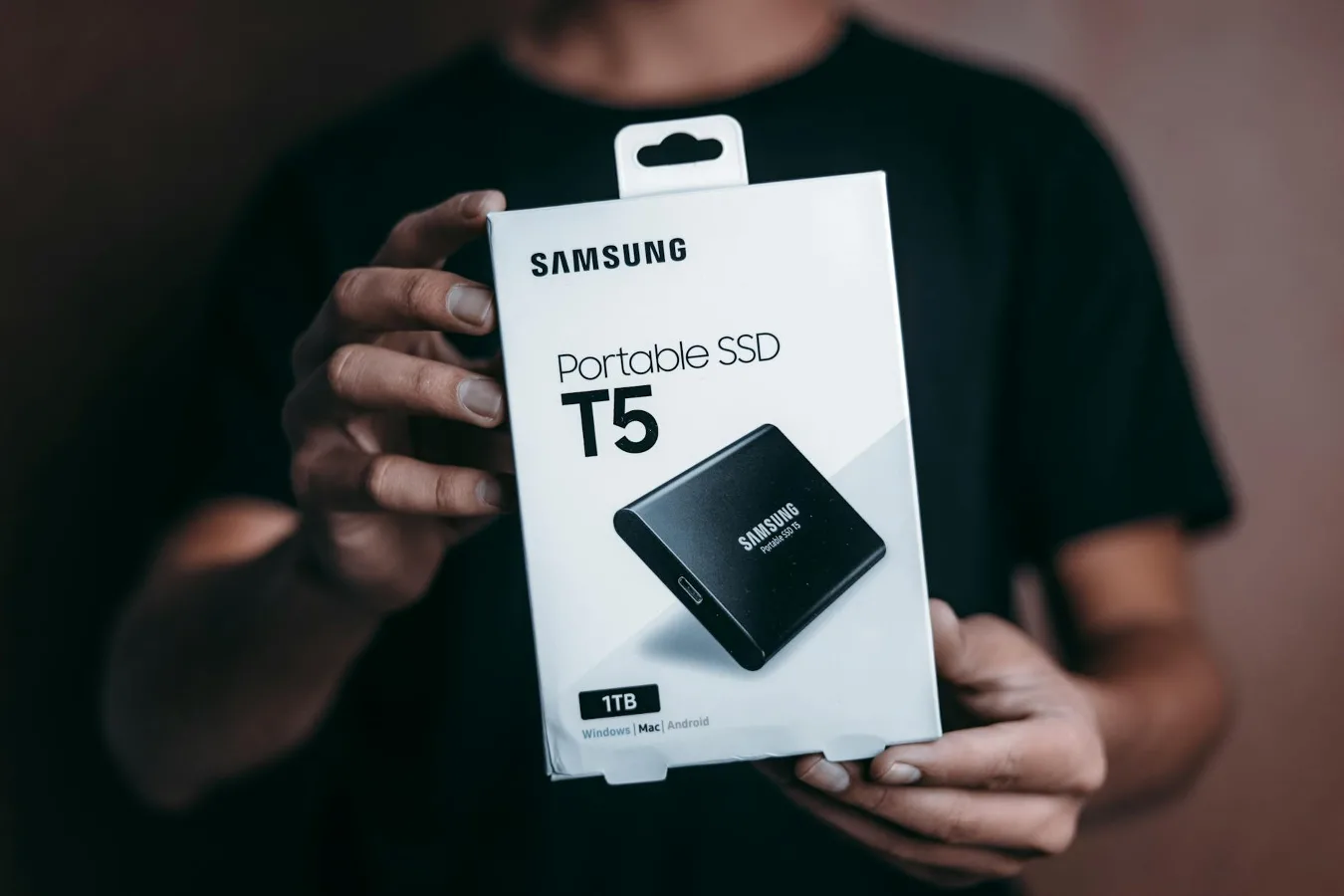
An external SSD uses a storage drive inside a portable enclosure and connects through USB, USB-C, or Thunderbolt. To your computer, it behaves like removable storage, even though the actual memory inside may be similar to what you’d find in an internal drive.
That distinction leads to the real difference users feel day to day:
- Internal SSDs are built into the system and are usually ideal for permanent storage upgrades.
- External SSDs are portable and flexible, with the trade-off of depending on a cable and a port.
- Both can be fast, but the interface and enclosure determine how close the external drive gets to internal-drive performance.
The main factors that matter in real use
1. Speed and responsiveness
If your goal is to make a computer feel quicker, internal SSDs usually have the advantage. They are often used for the operating system, applications, and frequently accessed files, which means lower latency and fewer bottlenecks.
External SSDs can still be very fast, especially with USB 3.2, USB-C, or Thunderbolt connections. But even a strong external setup depends on the quality of the port, cable, enclosure, and the computer’s own support. A fast drive can feel much slower if the connection is limited.
For many people, the practical difference is this: an internal SSD is the better choice for ongoing system responsiveness, while an external SSD is better for large transfers, project files, and carrying data around.
2. Portability
This is where the external SSD clearly wins. If you work on multiple computers, travel often, or need a drive that can move between a desktop, laptop, and perhaps even a workstation, portability becomes a major advantage.
Internal SSDs are not meant to be swapped from one machine to another on a regular basis. They can be moved, but that usually requires more effort and may create compatibility or boot issues depending on the system.
A common misconception is that external SSDs are only for backups. In reality, they can be a useful primary working drive for photos, video, design files, or game libraries, especially when portability matters more than absolute integration.
3. Compatibility
Internal SSD compatibility is tied to the computer’s hardware. You need the right form factor, interface, and available slot. A laptop may support M.2 NVMe but not a second drive bay. A desktop may have room for several drives but still require specific cable or slot support.
External SSDs are easier to attach to almost any modern system, but compatibility is not universal. Port speed, USB version, cable quality, and operating system support can affect performance and sometimes the drive’s behavior.
If you use a mixed environment of Windows PCs, Macs, or work and personal machines, external SSDs are often easier to live with. If you want one drive to act as the primary storage for a single machine, an internal SSD is usually the cleaner solution. storage solutions for gaming PCs offers more detail on this point.
4. Installation and convenience
Installing an internal SSD can range from simple to inconvenient. On some desktops, it may be a straightforward upgrade. On thin laptops, it may involve removing panels, handling screws carefully, or working around limited access. In some systems, upgrading storage can be difficult or not possible at all.
An external SSD avoids that entirely. Plug it in and use it. That convenience matters for users who do not want to open a computer, risk voiding service coverage, or spend time on migration steps.
There is, however, a trade-off that people sometimes overlook: convenience cuts both ways. External drives are easier to disconnect accidentally, forget at another desk, or expose to cable wear and port strain.
5. Durability and everyday handling
Internal SSDs are protected inside the chassis, which makes them less exposed to bumps, cable snags, and movement. That makes them a better fit for a system that stays in one place.
External SSDs are designed for transport, but they still face more physical risk simply because they leave the computer. The drive itself may be solid-state, yet the cable, enclosure, and connector are all points of vulnerability.
If your storage spends a lot of time in a backpack, conference bag, or camera kit, look closely at the enclosure and how the drive will be carried. A rugged build can matter more than raw speed for this use case.
6. Power and heat
Internal SSDs draw power from the computer in a controlled environment and are often managed by the system’s thermal design. External SSDs rely on the host device’s port power and the enclosure’s ability to shed heat.
That difference can matter during long transfers or sustained workloads. A portable drive may become warm, and performance can vary depending on how the enclosure handles heat. This is especially relevant for users moving large video files, disk images, or photo libraries.
Heat is a practical, overlooked consideration because it can influence consistency, not just peak speed. For light tasks, it may never be an issue. For repeated heavy transfers, it becomes part of the buying decision.
Which type fits which kind of user
Choose an internal SSD if you want a core system upgrade
An internal SSD makes the most sense when you want to improve the primary computer experience. That includes faster startup, quicker app loading, and smoother everyday use on a desktop or laptop that supports an upgrade.
It is the better option if:
- you want your operating system and apps on the fastest available storage
- you plan to keep the drive installed long term
- your computer supports modern internal interfaces like M.2 NVMe
- you want a cleaner setup with no extra cables
- you are replacing an older hard drive or smaller SSD
Internal SSDs are especially compelling for desktops that can take advantage of more than one drive. You might use one drive for the OS and applications, and another for games or project files, depending on the system layout.
Choose an external SSD if you value flexibility
An external SSD is usually the smarter choice when the drive must do more than one job or travel between machines. It is ideal for users who need portable access to files without committing to a hardware upgrade inside a computer.
It is the better option if:
- you work across multiple computers
- you want easy backup storage
- you need a fast scratch disk or project drive on the go
- your laptop storage is not upgradeable
- you want to avoid opening your device
External SSDs also make sense when you want storage that can outlast a single computer. A drive can move from one laptop to the next, which can simplify transitions and reduce the need to buy a new internal upgrade every time you change systems.
Practical trade-offs people often miss
External SSDs are not automatically slower in every meaningful scenario. A fast external drive connected through a good port can feel plenty responsive for many tasks. For file storage, backups, media libraries, and transport, the gap may not matter much.
Internal SSDs are not always the right answer for laptops. Some thin-and-light systems have limited upgrade access, and some users are better off using an external drive rather than forcing a hardware change. The right choice depends on whether the device is actually built for upgrading.
Portability has workflow value. This is easy to ignore when comparing spec sheets. For a photographer, editor, student, or consultant, being able to carry the same working files without cloud dependency can be more useful than squeezing out a little more internal performance.
Backup planning changes the equation. Many people buy an SSD as if it were only for active storage. In practice, an internal SSD can be your main system drive while an external SSD becomes the backup or archive companion. Those roles are often complementary rather than mutually exclusive.
Common mistakes when choosing between them
- Buying for speed without checking the interface. A high-performance external SSD still depends on the computer’s USB or Thunderbolt support.
- Assuming every laptop can be upgraded internally. Some systems have soldered storage or limited expansion options.
- Using an external SSD as the only copy of important files. Portable storage should not replace a backup strategy.
- Ignoring heat and sustained workload behavior. Short bursts and long transfers are not the same thing.
- Choosing portability when permanence is the real need. If the drive will stay attached to one computer, internal storage may be simpler and more reliable.
How to decide without overthinking it
A useful way to choose is to start with the job, not the product type.
If the drive will power your computer or replace your main storage: favor an internal SSD, provided your device supports it.
If the drive needs to travel with you, support backups, or work across multiple devices: favor an external SSD.
If you need both: many users do best with an internal SSD for the operating system and an external SSD for portable projects and backup copies.
That hybrid approach is often the most realistic. It gives you the speed and cleanliness of internal storage where it matters most, plus the flexibility of a portable drive where mobility matters more.
Realistic alternatives worth considering
If neither option feels quite right, a few adjacent choices may fit better:
- Internal HDD plus SSD on a desktop, if you need low-cost bulk storage and have room for multiple drives.
- External HDD for larger, slower archives where speed is less important than capacity and cost.
- Cloud storage for syncing and sharing, especially when collaboration matters more than local speed.
- NAS storage for users who want shared network storage at home or in a small office.
These are not replacements for every use case, but they can solve a different problem than an SSD comparison alone. A storage strategy is often better than a single purchase decision.
Decision guide by use case
| Use case | Better choice | Why it usually fits |
|---|---|---|
| Main operating system drive | Internal SSD | Best for responsiveness and seamless integration |
| Portable project files | External SSD | Easy to carry between devices |
| Backups | External SSD | Simple to unplug and store separately |
| Laptop with no upgrade path | External SSD | Expands storage without opening the device |
| Desktop performance upgrade | Internal SSD | Improves system-level speed and app loading |
| Multi-device workflow | External SSD | Works across different computers with minimal setup |
The choice that usually lasts longer
If your goal is to improve a single computer, an internal SSD is usually the most satisfying investment. It becomes part of the machine and helps the whole system feel faster and more responsive.
If your goal is to move files, protect data, or work flexibly across devices, an external SSD is usually the better fit. It trades some of the neatness and integration of an internal drive for portability and convenience.
The most common mistake is treating this as a simple speed contest. It is really a workflow decision. The better drive is the one that matches how you store, access, back up, and transport your data.
For many users, the most practical answer is not either/or. It is an internal SSD for the computer itself and an external SSD for everything that needs to move.
