
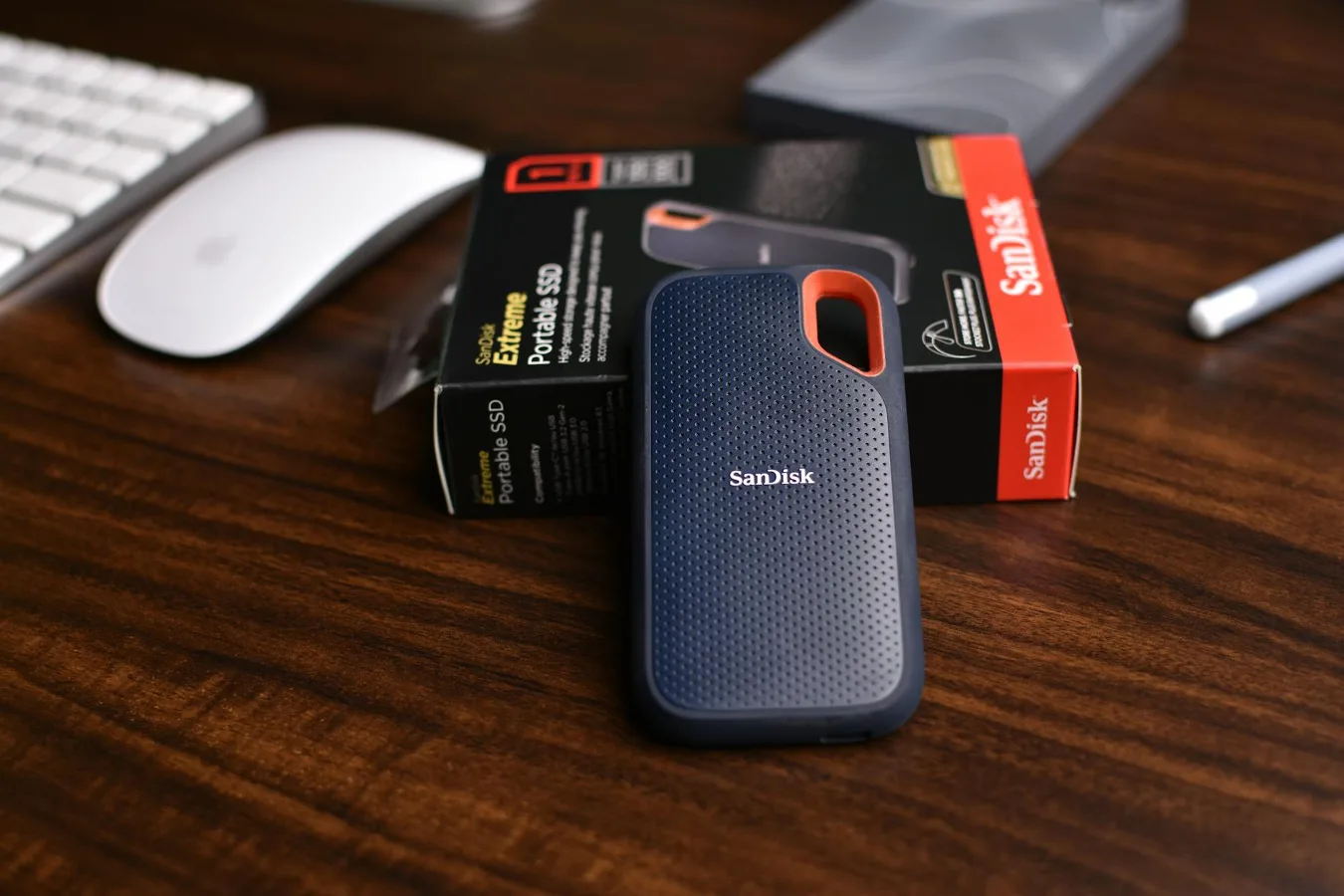
Internal SSDs are best when you want the fastest possible storage built into a computer, while external SSDs make more sense when portability, cross-device use, or simple plug-and-play access matters more. If you are deciding between the two, the real question is not which one is universally better, but which one fits your hardware, workflow, and budget more cleanly. external ssd vs internal ssd offers more detail on this point. learn more about mechanical keyboard vs magnetic offers more detail on this point.
That distinction matters because both options are fast compared with traditional hard drives, yet they serve different jobs. An internal SSD is part of the machine’s storage architecture. An external SSD is a removable drive that connects through USB or another external interface. One is optimized for staying put; the other is optimized for moving with you. storage options for gaming PCs offers more detail on this point.
Start with the main difference
The most useful way to compare internal vs external SSD is by use case. Internal SSDs usually deliver the most consistent performance because they connect directly to the motherboard through interfaces such as NVMe or SATA. External SSDs depend on the computer’s external port and the enclosure or controller inside the drive, so real-world speed can be affected by the USB standard, cable quality, and the port you plug into.
That does not make external SSDs slow in practice. For many people, an external SSD is fast enough for backups, document storage, photo libraries, and even editing media on the go. But if you want your operating system, applications, or games to load as quickly as possible, an internal SSD generally has the advantage.
Key factors that separate them
Performance and responsiveness
Internal SSDs are often the first choice for a boot drive because they can support lower latency and steadier throughput. That matters for launching the operating system, opening apps, and handling repeated small file requests. In everyday use, the difference is most noticeable when the drive is doing system-level work rather than simply copying a few large files.
External SSDs can still feel very quick, especially for sequential transfers. A modern portable drive is often a major step up from a hard drive. Still, external performance is more dependent on the connection path, which means one drive may perform very differently on an older laptop versus a newer desktop with a faster port.
Portability
This is where external SSDs clearly win. They are easy to carry, simple to share between computers, and useful for people who work in multiple locations. If you move between a home desktop, a work laptop, and a travel setup, an external SSD gives you one storage location you can access without opening your machine.
Internal SSDs can be portable only in the sense that they travel with the computer they are installed in. That is fine for a desktop or a primary laptop, but it is not ideal if you need the drive itself to move from one device to another.
Compatibility
Internal SSDs require the right interface, physical space, and sometimes BIOS or firmware support. A laptop may accept one type of M.2 drive but not another. A desktop may have free M.2 slots but no need for a SATA bay, or vice versa. Compatibility is one of the most overlooked parts of storage planning because a drive can be technically fast yet still be a poor fit for the machine.
External SSDs are usually simpler. If a computer has a supported USB port, the drive will usually work without internal installation. The trade-off is that the connection standard matters. A fast external SSD connected to a slower port will not reach its full potential, and some systems may not supply the ideal bandwidth for the drive.
Installation and setup
Internal SSD installation can be straightforward on some desktops and more involved on many laptops. It may require opening the case, handling tiny screws, and migrating data or reinstalling the operating system. That is manageable for many users, but it is still more work than connecting a cable.
External SSDs are easier to start using. You usually connect the drive, format it if necessary, and begin storing files. That simplicity is one reason external SSDs are popular for people who want extra storage without changing the inside of their computer.
Durability and travel risk
Internal SSDs are protected by being inside the device, so they are less exposed to bumps, cable strain, and accidental disconnection. That can make them a better long-term choice for a stationary system or a laptop that stays in one general setup.
External SSDs are built for mobility, but they are still removable hardware. The drive itself may handle travel well, yet the cable, port, and enclosure introduce additional points of failure. A drive that gets tossed into a bag without a protective case is more likely to face wear than one that remains inside a computer.
Where an internal SSD makes the most sense
Choose an internal SSD if the drive is meant to be the main storage for a laptop or desktop. That is usually the best setup for operating systems, applications, creative software, and games that benefit from fast, direct access. Internal storage also makes more sense if you want the cleanest possible setup with no extra cable management.
It is also the better option when you are upgrading an older computer and want to extend its useful life. Replacing a hard drive with an internal SSD can dramatically change how responsive a system feels, though the exact benefit depends on the rest of the hardware.
For desktop users, internal SSDs often work well as a primary drive for the OS and frequently used programs, with larger secondary storage added separately if needed. That split approach can help balance speed and capacity.
Where an external SSD is the smarter choice
Choose an external SSD if you need mobility, simple setup, or extra space without modifying the computer. It is especially useful for people who use multiple devices and want a shared library of project files, game installs, or media assets. It can also be a practical backup destination for important folders and system copies.
External SSDs are appealing when you are unsure about compatibility. Instead of checking internal slots, drive lengths, thermal clearance, and interface support, you only need to confirm that your system has a suitable external port. That lowers the risk of buying storage that does not fit your machine.
They are also useful for temporary needs. If you only need extra storage for a season, a project, or a transition between computers, an external drive avoids a more permanent hardware change.
Trade-offs worth thinking through
Speed versus convenience
The common misconception is that the fastest SSD is automatically the best one. In reality, speed matters most when the workload can use it. For everyday file storage, backup, and media transfer, convenience may be more valuable than raw benchmark performance. An external SSD can be the better practical choice if it saves time moving files between devices.
Capacity planning
Both internal and external SSDs are available in a range of capacities, but the right capacity depends on how the drive will be used. A boot drive often does not need to hold everything. A backup or media archive drive usually should be larger and easier to manage. People often underestimate how quickly game libraries, raw photos, and video projects can fill a drive, especially if the SSD is also used for working files.
Heat and sustained workloads
SSDs can slow down under sustained heavy use if they get warm, particularly during long transfers or intensive editing sessions. Internal SSDs may benefit from the computer’s airflow or heatsinks, while external SSDs depend on their enclosure design and ambient conditions. This is not usually a problem for casual use, but it can matter in creative workflows and large batch transfers.
Data management and backup habits
An external SSD often ends up acting like a portable library, which can be convenient but also encourages scattered file storage. If important files live only on a removable drive, the risk of loss or accidental damage becomes more important. Internal SSDs are not inherently safer, but they are often easier to integrate into a broader backup routine.
Practical ways to decide
If you want a simple rule: use an internal SSD for primary storage and an external SSD for portable or supplemental storage. That covers most people well. But the better decision usually comes from matching the drive to a specific role rather than treating storage as a one-size-fits-all purchase.
Ask a few practical questions:
- Will this drive stay in one computer most of the time?
- Do I need to move it between devices often?
- Does my computer support the internal form factor I want?
- Am I using it for the operating system, apps, media, backups, or temporary project storage?
- Do I care more about maximum speed or easy access?
If your answers point toward a permanent, high-priority drive, internal is usually the better fit. If your answers point toward flexibility and sharing, external is usually the better fit.
Common mistakes to avoid
One mistake is buying an internal SSD without checking whether the computer supports the exact type you need. M.2 is not a single universal standard in practice; size, keying, and interface all matter. Another mistake is assuming every external SSD will perform the same way just because the drive is labeled “fast.” The port and cable are part of the system.
People also sometimes treat an external SSD as a permanent replacement for proper backups. A removable drive is useful, but if it is the only copy of important files, it is still a single point of failure. Likewise, using a tiny internal SSD for everything can become frustrating if you install large games, store video projects, or keep many large creative assets locally.
How to think about specific use cases
For laptops
Laptops often benefit from internal SSDs because built-in storage keeps the system streamlined and reduces the hassle of carrying extra accessories. If the laptop has upgrade support, an internal SSD can be the cleaner long-term solution. But if the machine is thin, sealed, or already at its storage limit, an external SSD may be the easiest way to add room without a repair-like process.
For desktops
Desktops are often the most flexible environment for internal SSDs. They may offer more internal mounting options and easier access for upgrades. Still, external SSDs can be valuable on desktops too, especially for backups, scratch storage, or a secondary library that needs to travel occasionally.
For gaming
Gamers often think about load times first, but the storage choice also depends on library size and platform rules. An internal SSD is usually the best place for the operating system and frequently played titles. An external SSD can be handy for overflow storage or portable game libraries, though it is not always the best choice if a game is sensitive to connection quality or if the drive will be unplugged often.
For creative work
Photo and video workflows can benefit from both types of SSDs for different reasons. Internal SSDs are often better for active projects and software. External SSDs are useful for moving project libraries, offloading media, and maintaining a travel-friendly editing setup. For heavier workflows, reliability of connection and sustained transfer behavior matter more than headline speed alone.
What a balanced setup often looks like
Many users do best with a mix rather than a strict either-or choice. A common arrangement is an internal SSD for the operating system and day-to-day applications, plus an external SSD for backups, shared files, or large project archives. That approach uses each drive type for the job it handles best.
This hybrid setup also reduces friction. You keep performance where it matters most and flexibility where it helps most. It is often more practical than trying to make one drive do everything.
How to choose without overcomplicating it
If you only need one drive and your computer can support it, choose an internal SSD for the main system drive. If you need a drive that works across devices, is easy to set up, or can travel with you, choose an external SSD. If you need both speed and flexibility, use internal storage as the foundation and add external storage for overflow, backup, or portability.
The best choice is the one that matches the role you actually need the drive to play. That is the part people sometimes miss. Internal and external SSDs are not rivals so much as tools for different storage problems. Once you separate those problems clearly, the decision becomes much easier.
