
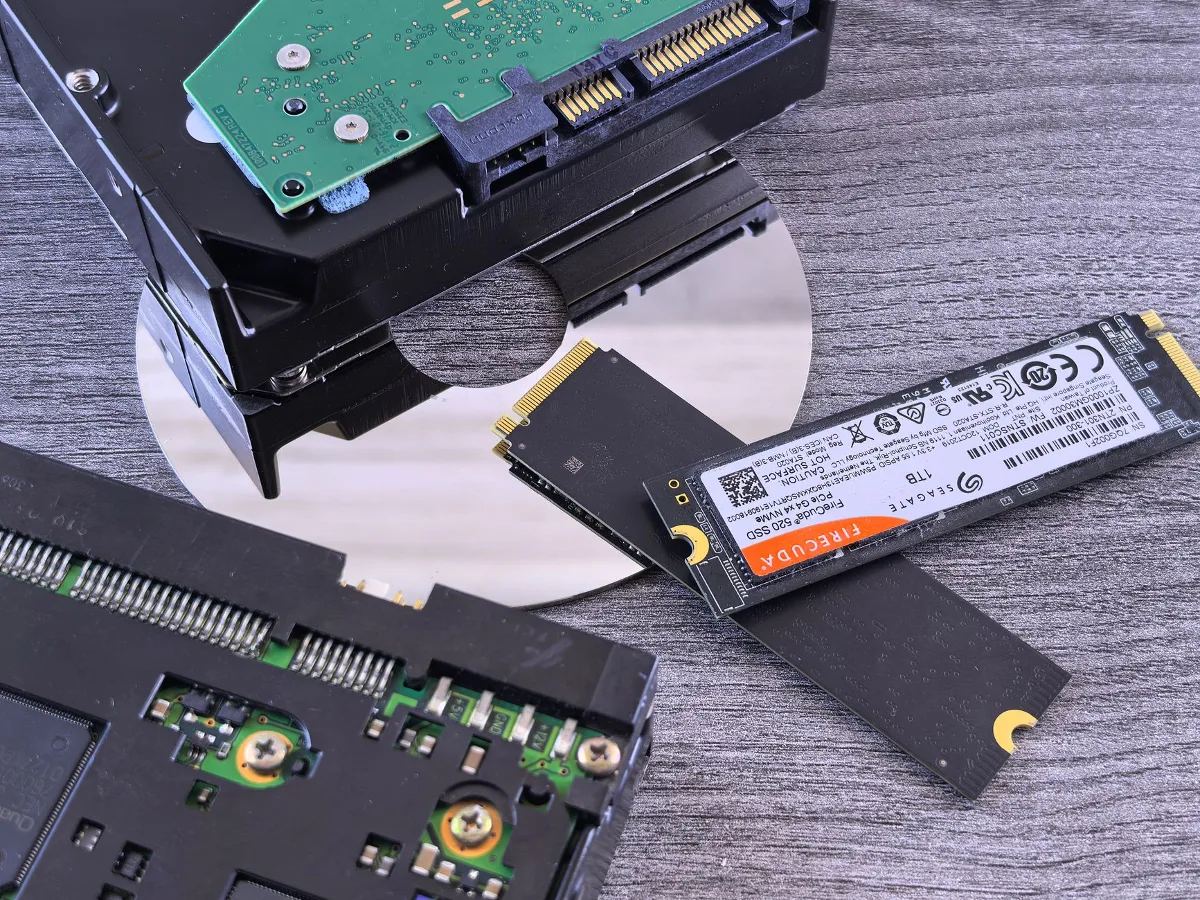
External and internal SSDs are both solid-state storage, but they are built for different jobs. If you want the simplest answer: choose an internal SSD when you want the fastest, most integrated storage upgrade for one computer, and choose an external SSD when you need portability, easy sharing, or a drive you can move between devices. SSD upgrade options for PCs offers more detail on this point.
That basic rule solves a lot of buying decisions, but not all of them. The better choice also depends on your device, the ports you have, whether you need to install an operating system, how often you carry the drive around, and whether speed or convenience matters more in daily use.
Which one should you buy?
If the drive is meant to stay inside a laptop or desktop, an internal SSD usually makes more sense. It connects directly to the motherboard or storage interface, so it is typically the cleaner upgrade for system boot drives, apps, games, and project files you use every day.
If you need a drive you can unplug and use elsewhere, an external SSD is the more practical option. It is especially useful for transferring large files, backing up a laptop, carrying work between home and office, or adding fast storage to a machine you do not want to open.
The decision gets trickier when the goal is simply “more storage.” A lot depends on whether you are replacing a slow drive, adding a second drive, or trying to solve a portability problem. That is where the real trade-offs appear.
Buyer scenario: how the use case changes the answer
Choose an internal SSD if you want a permanent upgrade
An internal SSD is usually the better fit if you are trying to improve the overall responsiveness of a computer. Boot time, app loading, game installs, and general system feel are all tied to internal storage performance and the quality of the connection to the system.
This is the strongest option for:
- older laptops that still support a storage upgrade
- desktop PCs that need a faster boot drive
- gaming systems with large libraries installed locally
- video editing or design machines that work on files all day
- users who want one drive to handle the operating system and primary apps
Choose an external SSD if you need flexibility
An external SSD makes more sense when storage needs to move with you. Students, frequent travelers, hybrid workers, and people who use multiple computers often benefit from a drive that works without installation.
It is also a practical choice if you are not comfortable opening a computer, if your device is difficult to upgrade, or if you want a backup drive that stays separate from your main system.
Common use cases include:
- moving media files between a desktop and laptop
- keeping project backups off the primary computer
- expanding storage for a compact notebook
- running temporary workspaces for presentations or editing
- sharing files between systems without relying on cloud sync
The real trade-offs that matter
Speed is not just about the SSD itself
A common misconception is that an external SSD is automatically slower in every situation. In practice, the connection matters just as much as the drive. An internal SSD usually has a more direct path to the system, while an external SSD depends on the USB standard, cable quality, and enclosure design.
That does not mean external SSDs are slow. It means their real-world performance is shaped by the entire setup. A fast external drive connected through a weak port or an outdated cable will not feel as quick as the label suggests.
Internal SSDs also vary. SATA-based models are different from NVMe models, and the computer’s supported interface matters. A fast internal SSD in an older system may not deliver its full potential if the motherboard or slot is limited.
Convenience and portability can outweigh raw speed
External SSDs are often easier to start using right away. There is no installation inside the case, no screwdrivers for many users, and no need to worry about whether the device supports a specific internal form factor.
Internal SSDs, on the other hand, are better when you want storage that behaves like part of the machine. They are less likely to get unplugged by accident and are usually the cleaner option for a primary drive.
Durability concerns are different, not automatically better
People sometimes assume an external SSD is safer because it lives outside the computer. The reality is more nuanced. External drives face more handling, more cable stress, and more exposure to drops or being left behind. Internal drives are protected inside the device, but the computer itself can still be damaged, lost, or stolen.
For portability, the external drive wins on flexibility but loses some points on physical exposure. For stationary use, the internal drive is usually the calmer, less fiddly option.
Material and spec factors to check before buying
For SSDs, the important details are less about visible materials and more about the interface, enclosure, and system compatibility.
1. Connection type
Internal SSDs commonly use SATA or NVMe interfaces. External SSDs usually connect over USB, often through a USB-C port, though the actual performance depends on the USB generation and the enclosure.
This matters because a drive can only perform as well as the slowest part of the chain. If your computer has older USB ports, an external SSD may still work well, but not at the level a newer port could support.
2. Form factor and compatibility
Before buying an internal SSD, check whether your device accepts the right form factor. Some systems support 2.5-inch SATA drives, some use M.2 drives, and some support both in different ways. M.2 is a shape, not a performance class, so compatibility still needs to be checked carefully.
This is a practical point many buyers overlook: two SSDs can look similar in listings yet be incompatible with the same computer. A drive that fits physically may still not be supported by the slot, protocol, or available clearance.
3. Enclosure quality for external use
If you buy an external SSD, the enclosure is part of the product experience. It affects heat management, physical protection, cable connection stability, and sometimes performance consistency. A poorly matched enclosure can become a bottleneck or make the drive feel less dependable over time.
For frequent travel, look for a setup that feels sturdy, uses a secure connector, and is easy to pack with a cable that is not fragile or awkward to replace.
4. Heat and sustained use
SSDs can slow down under heavy sustained workloads if heat builds up. This matters more for long file transfers, video editing, and large backups than for simple everyday use.
Internal drives often have better integration with the system’s airflow or heatsinks, while external drives depend on the enclosure design and the environment around them. If your workflow involves long write sessions, this is worth considering.
Internal SSD advantages and limitations
Why internal SSDs are appealing
- They are usually the best fit for a primary system drive.
- They keep the setup clean and cable-free.
- They are less likely to be disconnected during use.
- They can be a better long-term upgrade for supported laptops and desktops.
- They are often the more natural choice for operating systems, apps, and games.
Where internal SSDs fall short
- They require compatibility checks before purchase.
- Installation can be inconvenient or intimidating for some users.
- They are not portable between devices unless removed and reinstalled.
- Some laptops and compact systems have limited upgrade access.
External SSD advantages and limitations
Why external SSDs are appealing
- They are easy to move between computers.
- They are useful for backups and file transfer.
- They do not require opening the device.
- They work well as add-on storage for slim laptops and tablets with support.
- They can be repurposed more easily if your hardware changes.
Where external SSDs fall short
- They depend on the port, cable, and enclosure quality.
- They can be less convenient for always-on system storage.
- They add another object to carry and track.
- They are easier to forget, misplace, or disconnect.
How to think about performance in real use
For most buyers, the real performance question is not “Which SSD is faster on paper?” but “What will I notice day to day?” That answer changes by task.
If you are booting Windows, launching apps, and opening common files, both internal and external SSDs can feel dramatically better than a hard drive. But an internal SSD usually has the edge for system-level work because it is built into the machine.
If you are moving huge video folders, archives, or backups, the external SSD may be the more useful tool because it is easy to plug in where needed. Just remember that sustained transfer speed can vary based on the enclosure, port type, and thermal conditions.
For gaming, an internal SSD is usually the cleaner choice for a main library. External SSDs can work for some game storage scenarios, but the experience depends on the platform, connection, and whether you want the library always attached. best storage setup for gaming PCs offers more detail on this point. Internal vs External SSD: Which Fits Best? offers more detail on this point.
Common mistakes buyers make
- Buying by capacity alone. A large drive is not helpful if the connection type or form factor does not match the device.
- Assuming all USB-C ports behave the same. The connector shape does not tell you the data speed.
- Ignoring the difference between SATA and NVMe. These are not interchangeable in every system.
- Choosing an external drive for a permanent desktop upgrade. That often creates clutter without solving the core need.
- Choosing an internal drive when portability is the real priority. A fast internal SSD cannot travel with you unless you install it somewhere else.
- Overlooking backup habits. An SSD is storage, not protection by itself. A separate backup plan still matters.
Practical decision guide
If you want the simplest way to decide, use this approach:
- Need a drive inside one computer? Start with an internal SSD.
- Need to carry files between machines? Start with an external SSD.
- Not sure about compatibility? Check your device manual, storage slot type, and available ports before buying.
- Need both portability and a system upgrade? Consider an internal SSD for the main drive and a smaller external SSD for backup or transfer work.
That last option is often the most balanced for people who use a laptop as both a work machine and a travel device. Internal storage handles the operating system and daily apps, while external storage handles overflow, archives, and backups.
Next steps before you buy
Before choosing external vs internal SSD, confirm three things: what your computer supports, what your workflow actually needs, and how often you expect to move the drive around.
If you are upgrading a PC or laptop for everyday speed, compatibility should lead the decision. If you are solving a storage-sharing problem, portability should lead. And if you want the best of both worlds, the answer may be to use both kinds for different jobs.
That is the nuance many buyers miss. The question is not which SSD is universally better. It is which SSD fits the way you use your computer now and the way you expect to use it later.
