
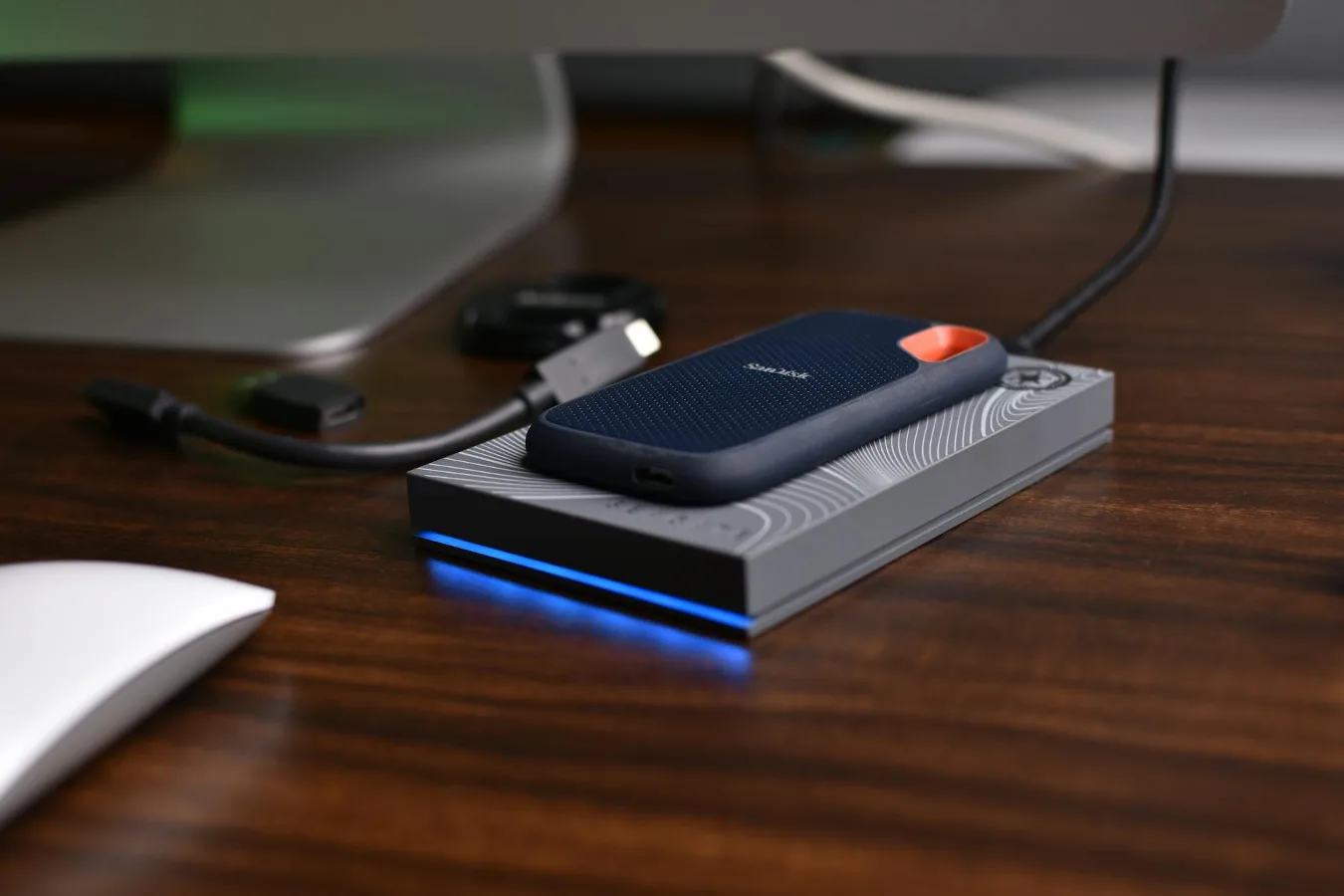
Quick answer: external SSD vs internal SSD
If you want the shortest possible answer, choose an internal SSD when you want the fastest, most seamless storage upgrade for a desktop or laptop that can accept one. Choose an external SSD when you need portability, easy plug-and-play use, or a way to move files between multiple computers without opening the machine.
The right choice is usually less about which one is “better” overall and more about where the drive will live and what job it needs to do. An internal SSD is typically the better system drive or primary storage upgrade. An external SSD is usually the better travel drive, backup drive, or overflow workspace.
That distinction matters because many buyers focus only on speed. Speed is important, but so are compatibility, installation effort, upgrade flexibility, and how the drive will be used day to day. A drive that is technically fast can still be inconvenient if it does not fit the workflow.
How they differ in real use
An internal SSD connects directly inside the computer, usually through a motherboard slot such as M.2 or through a SATA connection. Because it sits inside the system, it is often used as the boot drive, application drive, or primary workspace for demanding tasks.
An external SSD sits in its own enclosure and connects over USB or Thunderbolt. That makes it easy to move between devices, but the connection path adds another layer between the drive and the computer. In practice, that means the external drive is usually limited by the port and enclosure, not just by the SSD itself.
That limitation is a common misconception. People sometimes assume an external SSD will feel the same as an internal NVMe drive because both can be very fast on paper. In reality, the connection standard, cable quality, and device support often shape the experience more than the label on the box.
Where an internal SSD usually wins
An internal SSD is usually the stronger choice when you care about sustained performance and a cleaner computer setup. It is the natural fit for operating systems, software libraries, large project files, and games that benefit from being close to the rest of the system.
It also avoids one of the most common real-world constraints with external storage: port dependence. If you unplug an external SSD, it is gone from the system. If the cable is loose or the port is busy, your workflow can be interrupted. An internal SSD is not immune to failure, but it is much less exposed to accidental disconnects.
There is also a practical advantage for laptops and desktops that support multiple internal drives: you can build a storage layout that makes sense. One drive can hold the OS and apps, another can hold active projects, and a third can be used for backups or less frequently accessed files. That kind of organization is harder to replicate with only external storage.
Best situations for an internal SSD
- Replacing a slow hard drive in an older laptop or desktop
- Upgrading the main system drive for faster boot and load times
- Storing games or applications you want to access frequently
- Keeping creative projects on a drive that stays connected
- Building a more permanent storage setup inside a PC
Where an external SSD makes more sense
An external SSD is usually the better choice when flexibility matters more than permanent installation. It is especially useful for users who work across multiple devices, need a portable project drive, or want quick plug-and-play storage without opening hardware.
This is a major advantage for people who do not want to risk compatibility issues inside a laptop. Not every computer can be upgraded easily, and some ultrabooks have soldered storage or limited expansion. In those cases, an external SSD can be the most practical way to add fast storage without replacing the computer.
External SSDs are also convenient for backups and file transfers. You can keep one drive dedicated to Time Machine-style backups, offline archives, or project handoff. That makes them useful even if the main machine already has fast internal storage.
Best situations for an external SSD
- Moving large files between a desktop and laptop
- Using the same drive across multiple computers
- Adding storage to a machine you do not want to open
- Keeping a portable workspace for media or documents
- Maintaining a backup drive that can be disconnected when not needed
Comparison factors that actually matter
Speed and performance
Internal SSDs often have the highest performance ceiling because they connect directly to the motherboard. Modern NVMe internal drives can deliver excellent responsiveness for booting, launching apps, loading large games, and handling heavy multitasking. They are the typical choice when performance is the main priority.
External SSDs can still be very fast, especially with USB 3.2, USB4, or Thunderbolt connections. For many everyday file transfers, they feel quick enough. But the maximum performance you see will depend on the port on the computer, the cable, and the enclosure design. A fast SSD inside a slower external setup will not perform like a top-tier internal drive.
There is another nuance people overlook: sustained performance. A drive can look impressive during short bursts and still slow down during long transfers or heavy workloads. That matters more for video editing, large photo libraries, and other demanding jobs than for occasional document storage.
Portability
This is the easiest category to separate. External SSDs are built for portability. Internal SSDs are not. If you want a drive that can live in a bag, move between offices, or support field work, external wins almost by definition.
Still, portability has trade-offs. Portable drives are easier to misplace, can be disconnected accidentally, and depend on an extra cable. If the drive will stay connected to one machine almost all the time, the portability advantage may not be worth the inconvenience.
Compatibility
Internal SSDs require the right slot, form factor, interface, and sometimes BIOS or motherboard support. That can make compatibility more complicated, especially in laptops. An external SSD is usually simpler because it works through a standard port, but even that simplicity has limits. Older USB ports, weak power delivery, or limited system support can reduce performance.
For buyers who are unsure about internal compatibility, checking the computer model before purchasing is essential. A drive that physically fits may still not be the best option if the system lacks the right connector or if installation access is difficult.
Installation and setup
External SSDs are the easier option. Plug it in, format it if needed, and start using it. Internal SSDs require opening the computer, handling hardware carefully, and sometimes cloning or reinstalling the operating system. That is not necessarily difficult, but it is more involved and may not suit every user.
For some people, installation effort is actually part of the value. An internal upgrade can produce a cleaner and more stable setup once completed. For others, especially casual users, the simplicity of an external drive outweighs everything else.
Storage efficiency and organization
Internal storage usually encourages a more disciplined setup because it is part of the machine. That can be an advantage for system files, apps, and active projects. External storage can become a catch-all if you are not careful, which makes it easier to misplace important data or forget what is backed up where. best storage setup for a gaming PC offers more detail on this point.
A common mistake is treating an external SSD as a substitute for proper backup planning. A portable drive is useful, but if it is the only copy of valuable files, it is not really a backup. It is just another location for the same data.
Common mistakes people make when choosing
- Choosing only by headline speed. The connection type and computer port can matter more than the drive itself.
- Ignoring the computer’s upgrade path. Some laptops have limited or non-upgradable internal storage.
- Using portable storage as the only copy of important files. That increases risk if the drive is lost or damaged.
- Assuming an external SSD will match internal NVMe performance in every scenario. The enclosure and port can bottleneck it.
- Overlooking workload type. Gaming, backup, media editing, and travel use each favor different storage setups.
Which one is better for specific needs?
For a boot drive: internal SSD. The operating system benefits most from being on a drive that stays inside the machine and has the fewest connection layers.
For a laptop with limited upgrade options: external SSD. If the internal storage is soldered or difficult to access, portable storage may be the most realistic upgrade path.
For game storage: both can work, but internal is usually better if you want the smoothest experience. External is practical for extra library space, especially when portability matters.
For creative work: internal SSDs are often preferred for active projects, while external SSDs are useful for moving media, archives, and backup copies.
For backups: external SSDs are often the more convenient choice because they can be disconnected when the backup is complete. That physical separation can be helpful for protection against accidental changes or file corruption.
Overlooked considerations before you buy
One overlooked factor is heat management. Both internal and external SSDs can warm up during heavy use, but external drives may be more sensitive to enclosure design and airflow. If you plan to move large files often, the enclosure matters as much as the SSD inside it.
Another practical nuance is cable quality and length. With external storage, the cable is part of the system. A poor cable can lead to unreliable connections or slower performance. That is not usually the first thing buyers think about, but it can affect the experience more than expected.
There is also the matter of future flexibility. An internal SSD upgrade can free up internal storage for years, but it is tied to one machine. An external SSD can move with you if you replace the computer. If you change devices often, that portability can be more valuable than slightly better internal performance.
A simple way to decide
Choose an internal SSD if your priority is a more permanent, integrated, and usually faster storage upgrade. Choose an external SSD if your priority is portability, convenience, or compatibility with multiple devices.
If you are still undecided, ask three questions:
- Will this drive stay with one computer most of the time?
- Do I need the easiest possible upgrade path?
- Is this for the operating system, active work, backups, or transport?
If the answer is “yes” to permanence and primary storage, internal usually wins. If the answer leans toward travel, flexibility, or shared use, external usually makes more sense.
The best storage choice is the one that fits your workflow without creating new friction. That is why the internal SSD vs external SSD decision is less about a universal winner and more about matching the drive to how you actually use your computer.
